BTC— —ETH— —SOL— —XRP— —DOGE— —NASDAQ— —S&P 500— —NIKKEI— —KOSPI— —WTI futures— —
Skip to content
SPARKGuidebook

SPARK user guide

From joining SPARK to reading news and exploring data, follow the on-screen controls one step at a time. Use the contents or search to jump to the page you need.

Contents

Sign up and manage your account

New to SPARK? Start with the market overview, then join with Google and set up your language and profile.

Open page

Get started with Google

You can explore the overview and this guide before signing in. When news or a detailed data page asks you to sign in, follow the prompt to continue.

This screenshot is an example. Open the menu for the latest information.

Sign up and manage your account · Start with Sign up in the upper-right corner.
1Select Sign up in the upper-right corner.
Start with Sign up in the upper-right corner.
Sign up and manage your account · Sign in with your Google account to start using SPARK.
2Choose Continue with Google and select the Google account you want to use for SPARK.
Sign in with your Google account to start using SPARK.
  1. Complete the sign-in instructions shown by Google.
  2. Check that you have returned to the page you requested; if there was no destination, Account opens instead.

Make SPARK comfortable to use

After signing in, choose a display name and language that suit you.

  1. Use the language menu to choose Korean, English or Japanese.
  2. Open the profile menu and select Account settings.
  3. To change your display name, enter at least two non-space characters and select Save profile.
  4. Check the save confirmation, then open a menu. Language changes apply immediately in this browser.

Check your sign-in and access

If you already have an account, choose Sign in and use the same Google account. A new sign-in from another browser ends the earlier sign-in. If an expiry notice appears, sign in again.

Some data and reports require access through a trial or subscription. Check your status in Account and follow any Premium guidance shown.

Manage your profile, billing and sign-out

Account shows your Google email, trial status and billing details. The Google email cannot be edited here; if you receive briefing emails, they are sent to this address too.

To leave this browser session, select Sign out from the profile menu or Account. Cancelling a subscription and deleting an account are separate actions with their own confirmation dialogs.
Overview

Get a quick sense of what is happening in markets and choose the news or data you want to explore next.

Open page

Take a first look around

You do not need to understand every number at once. Pick one topic from the briefing and follow it into a related article or data page.

  1. Choose your display language at the top of the screen.

This screenshot is an example. Open the menu for the latest information.

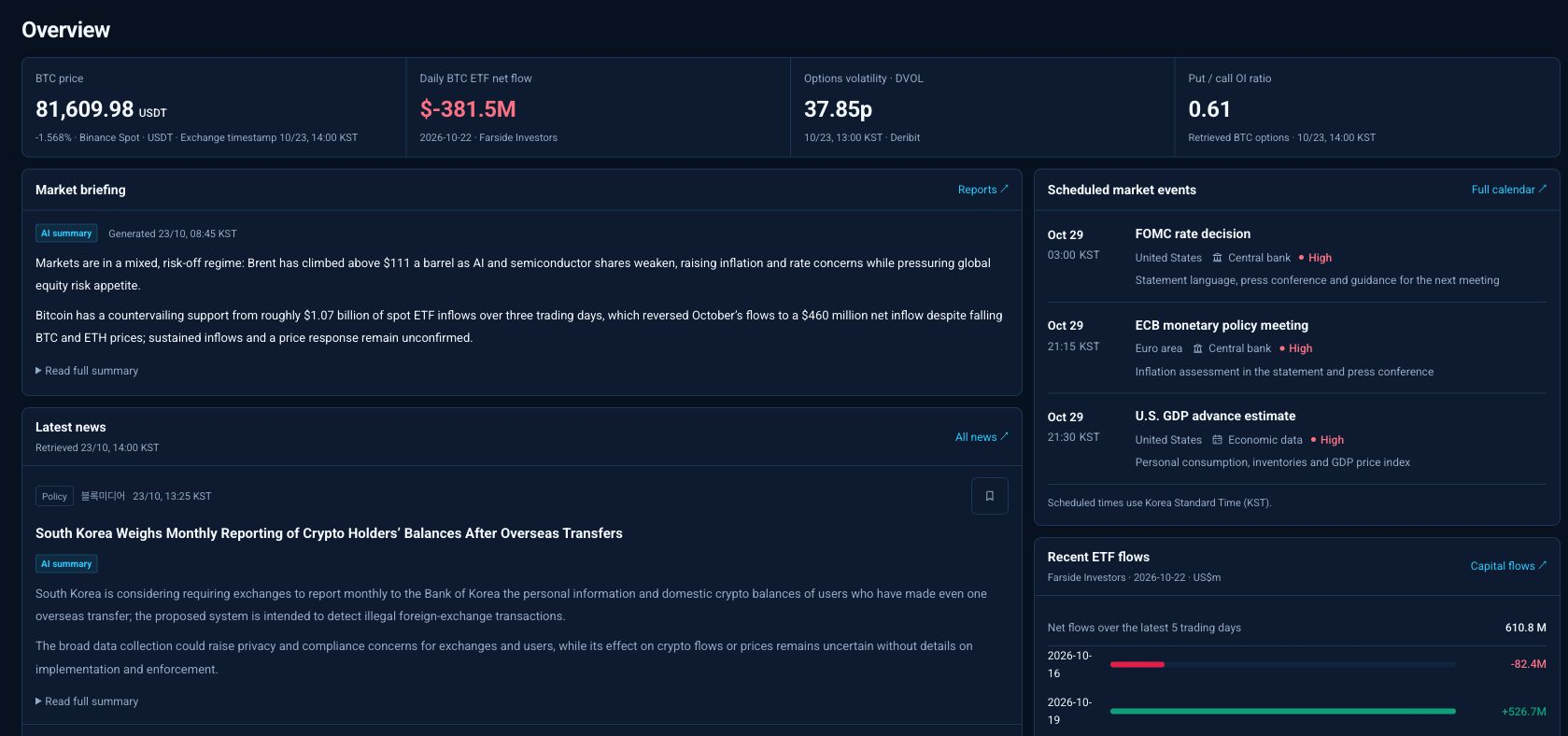
Overview · Start with the market briefing and top stories, then check prices and upcoming events.
2Read the market briefing and headlines, then choose a topic.3Open an article headline or a menu item for more detail.
Start with the market briefing and top stories, then check prices and upcoming events.
  1. If asked to sign in, complete sign-in and continue on the requested page.

Connect the briefing, news and calendar

Use the briefing for context and related news for the story behind it. The calendar helps you look ahead to releases, while price tables help you compare related assets.

AI analysis includes its writing time. Opening the page today does not mean every analysis was written today, so compare older pieces with recent news.

Read the dates beside the numbers

Prices and indices can use different venues, currencies and times. A dash or unavailable notice means the value is not available to check, which differs from a genuine zero.

News

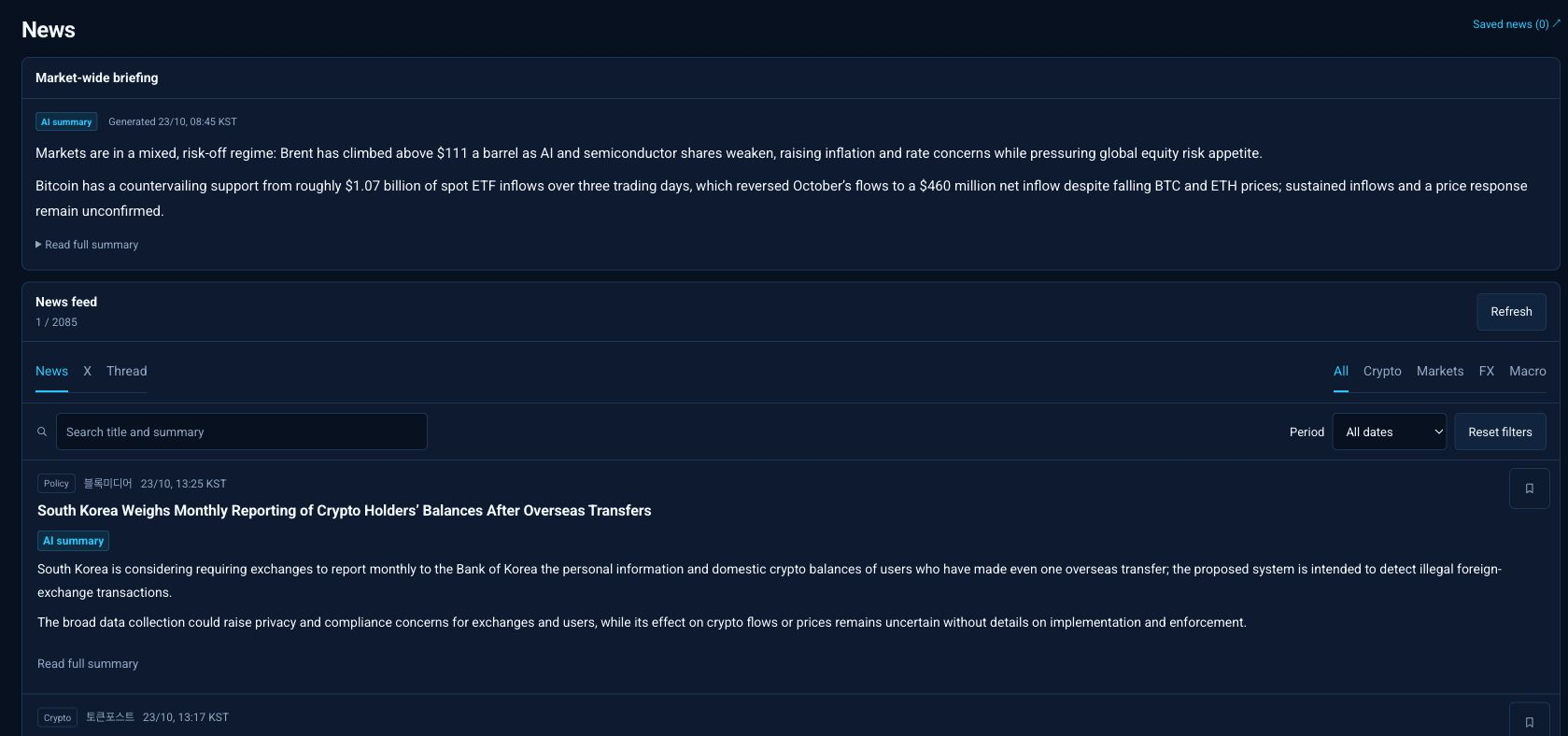
Find stories on topics that matter to you, read their summaries and follow through to the originals.

Open page

Find the articles you want

Start with a broad search, then narrow the sector and dates if there are too many results. Changing filters returns the list to its first page.

This screenshot is an example. Open the menu for the latest information.

News · Search for a story and select its title to read it. Narrow the results by channel, sector or date.
1Choose News, Thread or another channel shown on the page.3Enter a term in Search title and summary, then choose a period such as Today, Last 7 days or Custom dates.4Open a headline or use Previous and Next to browse more results.
Search for a story and select its title to read it. Narrow the results by channel, sector or date.
News · Search for a story and select its title to read it. Narrow the results by channel, sector or date.
2Choose All, Crypto, Markets, FX or Macro.3Enter a term in Search title and summary, then choose a period such as Today, Last 7 days or Custom dates.
Search for a story and select its title to read it. Narrow the results by channel, sector or date.

Read the summary, then the original

Article details bring the summary, related assets and publication information together. Use Read original when you need the publisher’s full context or wording.

Publication, update and AI-summary times may differ. Read excerpts from related posts as excerpts rather than as full articles or separate AI analyses.

This screenshot is an example. Open the menu for the latest information.

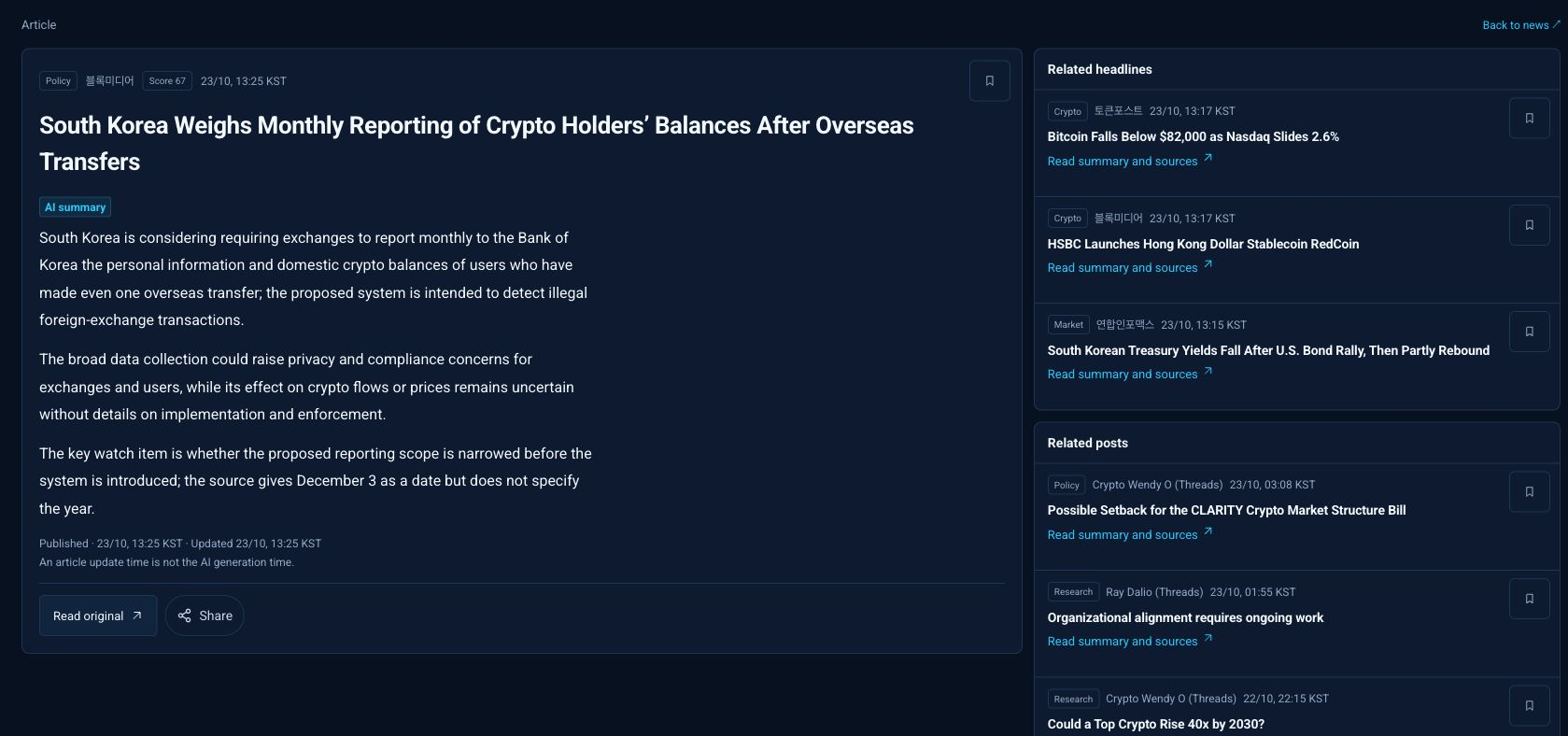
News · Read the summary for the key points, then follow the source link for the full story.
1Read the summary and publication time to understand the story.2Select Read original to open the publisher’s full story.3Select Share when you want to share the article link.4Use the bookmark beside the title to save the story for later.
Read the summary for the key points, then follow the source link for the full story.

When results or a translation are missing

If no articles match, shorten the search term or widen the dates. Reset filters returns you to the default news list so you can start again.

Original headline means the title is shown in its original language. A selected-language summary notice separately means that the summary translation is unavailable; use Read original or another language for the content you need.

Reports

Choose a published PDF report and adjust its page and size for comfortable reading.

Open page

Open a report

The list shows titles, publication dates and file details. Check the date and document language before choosing a report.

  1. Choose your language, then open Reports.

This screenshot is an example. Open the menu for the latest information.

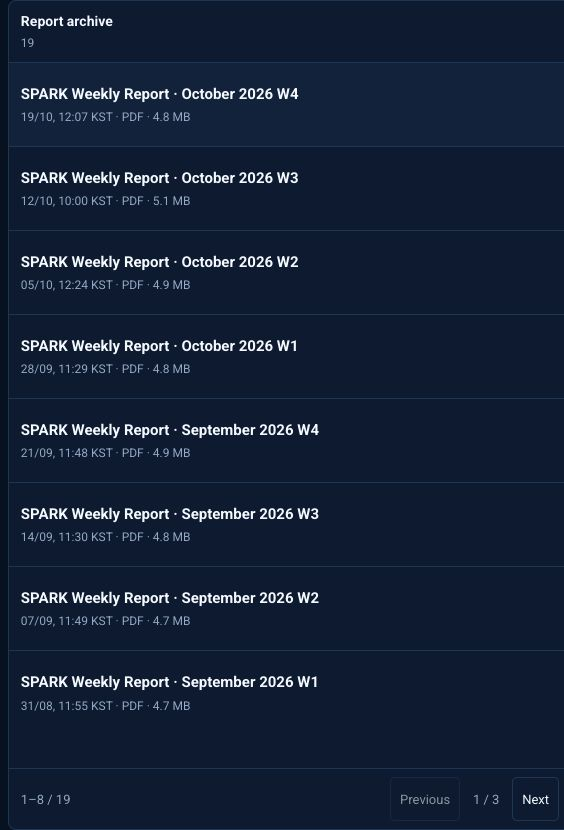
Reports · Choose a report to read. Use Previous and Next to browse more reports in the archive.
2Select a document by its title and publication date.
Choose a report to read. Use Previous and Next to browse more reports in the archive.
Reports · Choose a report to read. Use Previous and Next to browse more reports in the archive.
3Use Previous and Next to browse other archive pages.
Choose a report to read. Use Previous and Next to browse more reports in the archive.
  1. Read the selected PDF or use Open PDF to view it in a separate tab.

Make the PDF easier to read

Use the PDF toolbar for page navigation, fit-page, fit-width and zoom. On a phone, scroll inside the document viewer to continue reading.

The number of archive rows can adapt to the screen. The archive pager and the PDF page controls navigate different things.

This screenshot is an example. Open the menu for the latest information.

Reports · Move between PDF pages with Previous and Next. Adjust the fit and zoom for comfortable reading.
1Use the Previous and Next arrows in the PDF toolbar to change document pages.2Choose Fit page or Fit width to adjust the document to your screen.3Use the zoom buttons to make the text comfortable to read.4Select the expand icon to give the document viewer more room.
Move between PDF pages with Previous and Next. Adjust the fit and zoom for comfortable reading.

If a report is missing or will not open

Reports are supplied in the language in which they were published. Changing the interface language does not translate a PDF; check the archive for the language you need.

If you see a sign-in or access notice, check Account first. A report describes conditions at publication, so compare its dates when reading it alongside today’s prices.

Saved news

Bookmark articles you want to revisit and find them together in one place.

Open page

Save an article and return to it

Saved news shows the most recently saved articles first. If the list is empty, start by bookmarking a story in News.

This screenshot is an example. Open the menu for the latest information.

Saved news · Bookmark articles in News to read them later. Your saved stories will appear here.
1Select the bookmark icon beside a headline to save the article.
Bookmark articles in News to read them later. Your saved stories will appear here.
Saved news · Bookmark articles in News to read them later. Your saved stories will appear here.
Bookmark articles in News to read them later. Your saved stories will appear here.
Saved news · Bookmark articles in News to read them later. Your saved stories will appear here.
Bookmark articles in News to read them later. Your saved stories will appear here.
  1. Open Saved news and select a headline to return to its details.
  2. Use Previous and Next for longer lists, and select the bookmark again to remove an article.

Use the browser where you saved it

Bookmarks stay in this browser. They do not automatically appear on another device or browser when you sign in with the same account, and clearing browser data can remove the list.

When a saved article is unavailable

If your sign-in expired, sign in again and retry. For a deleted or unavailable article, use Remove from saved beside its notice to tidy the list.

Capital flows

Explore ETF inflows and outflows, fund asset values and disclosed corporate BTC holdings as separate views.

Open page

Choose the flow you want to explore

Start with Overview, then move to the tab you need. Read the analysis and check its topic in the tables and charts below.

This screenshot is an example. Open the menu for the latest information.

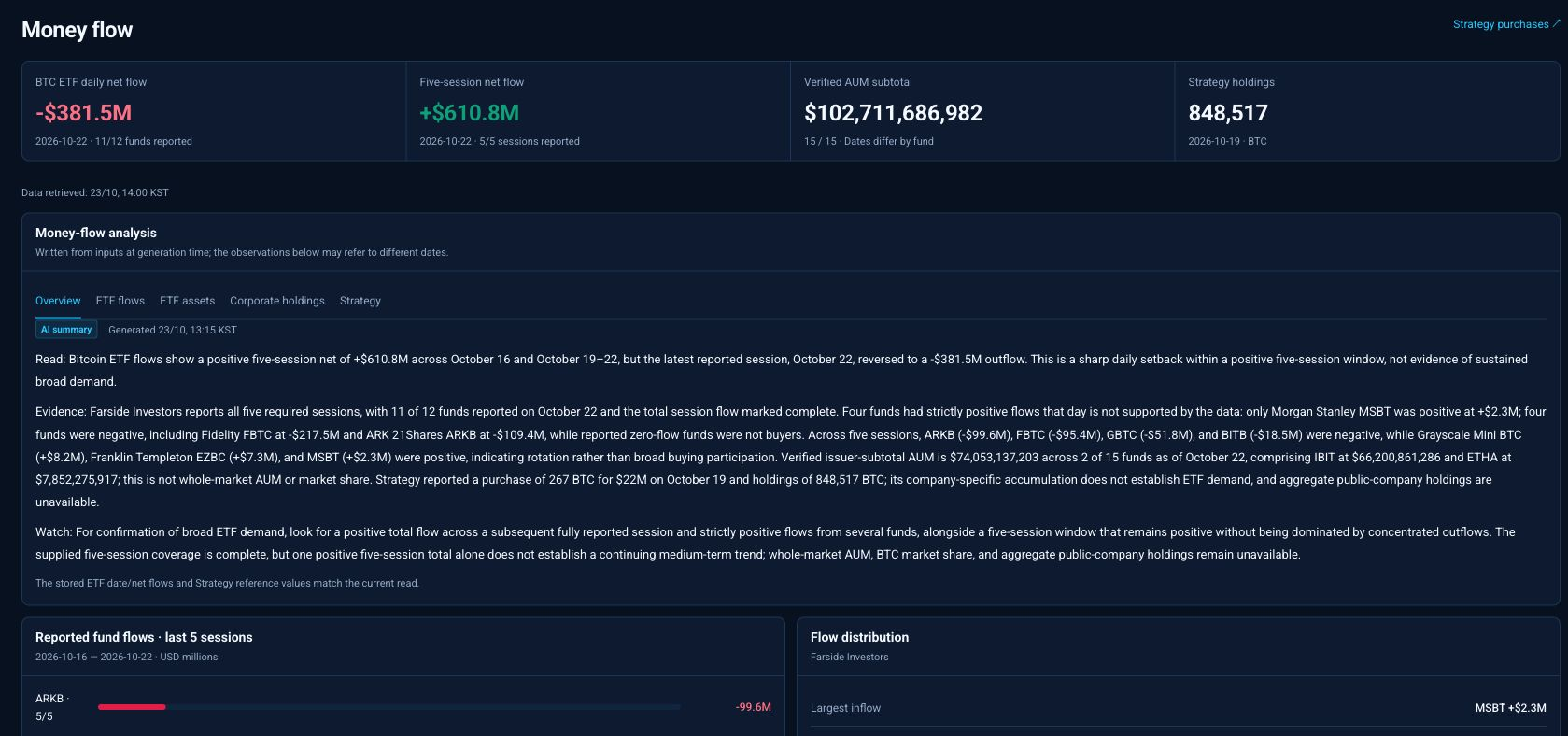
Capital flows · Explore ETF net inflows and outflows alongside the analysis. Check how many funds and sessions are reported before comparing figures.
1Choose Overview, ETF flows, ETF assets, Corporate holdings or Strategy.4Use the corporate or Strategy tab for holdings and purchases; open the Strategy page for the detailed purchase history.
Explore ETF net inflows and outflows alongside the analysis. Check how many funds and sessions are reported before comparing figures.
  1. In ETF flows, choose 5, 20 or All history records and compare BTC ETF flows by date and reporting coverage.
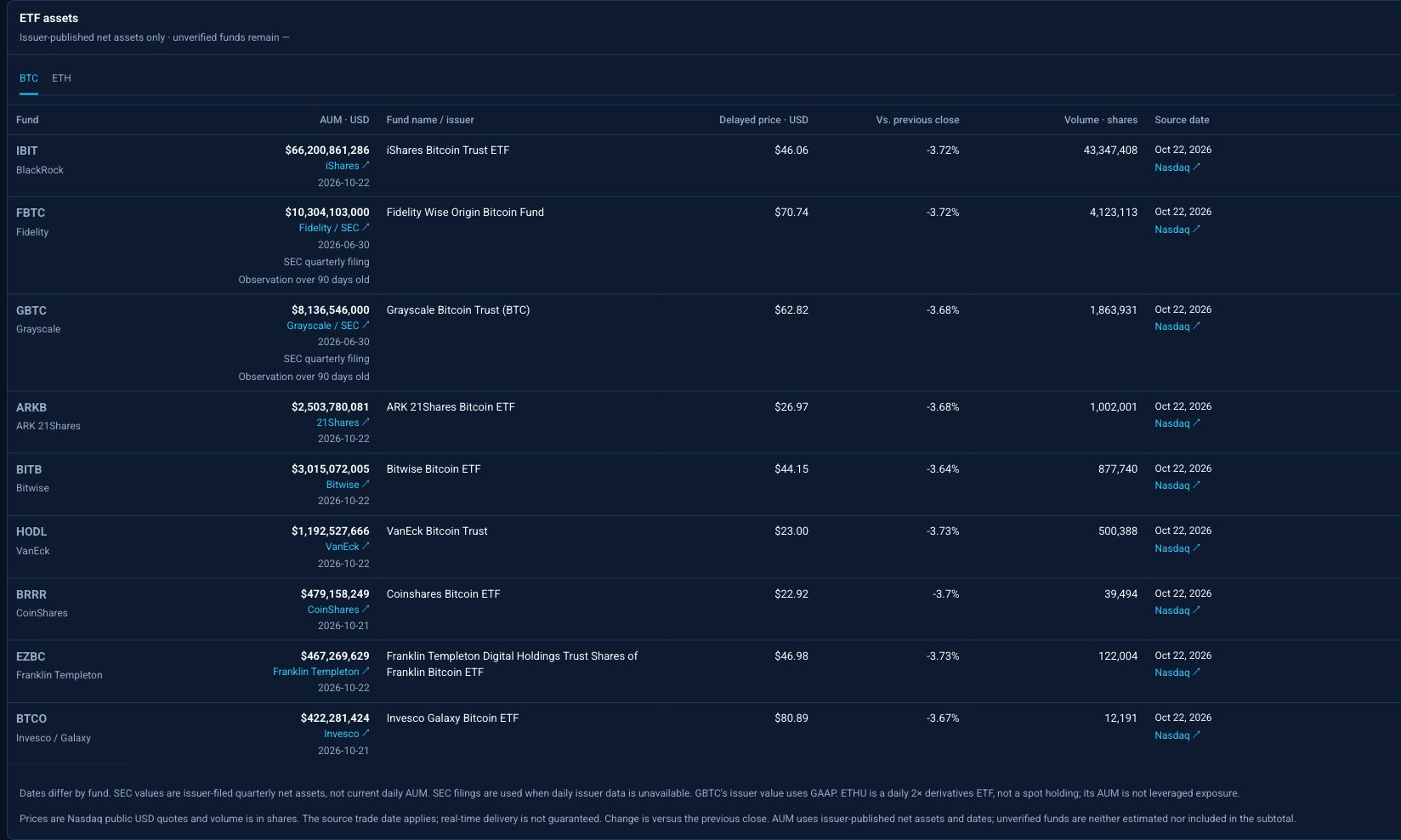
Capital flows · Compare each fund's assets under management (AUM). Check the dates and sources beside the amounts, as they may cover different dates.
3In ETF assets, switch between BTC and ETH and review each fund’s assets, source and date.
Compare each fund's assets under management (AUM). Check the dates and sources beside the amounts, as they may cover different dates.

Read inflows and outflows

A positive daily net flow means net inflows; a negative value means net outflows. Check the USD-million unit and distinguish a daily reading from the five-session total.

The 5, 20 and All history controls choose how many records to display. An unreported or partially reported day may not have a final total; an empty cell is not proof of no flow.

If a fund’s five-session figure shows partial coverage such as 4/5, distinguish it from a total with all five dates reported.

Net flow
Money entering minus money leaving over a stated period.
AUM
A fund’s asset value at a particular date, rather than its daily net inflow.

Read AUM dates and product types

Read the source link and date in the AUM column together. SEC quarterly net assets apply to the filing’s stated date, not today’s daily AUM. GBTC’s GAAP net-assets label also identifies the accounting basis.

Treat an over-90-days notice as a reminder that the observation is older. ETHU is a daily 2× derivatives ETF rather than a spot ETF; its AUM is not twice the fund’s assets or its leveraged exposure.

The verified AUM subtotal covers the funds included here, whose dates differ; it is not a same-time total for the whole market. ETF price change is versus the previous close and volume counts shares, so distinguish assets, prices and flows.

Use holdings and analysis together

The corporate BTC table includes companies supported by public disclosures. One company’s holdings are not a total for all companies or the entire market. For an older analysis, check newer filings and tables first.

Strategy

Explore Strategy’s disclosed BTC purchases and holdings, starting with the latest filing and working back through its history.

Open page

Explore the latest purchase and its history

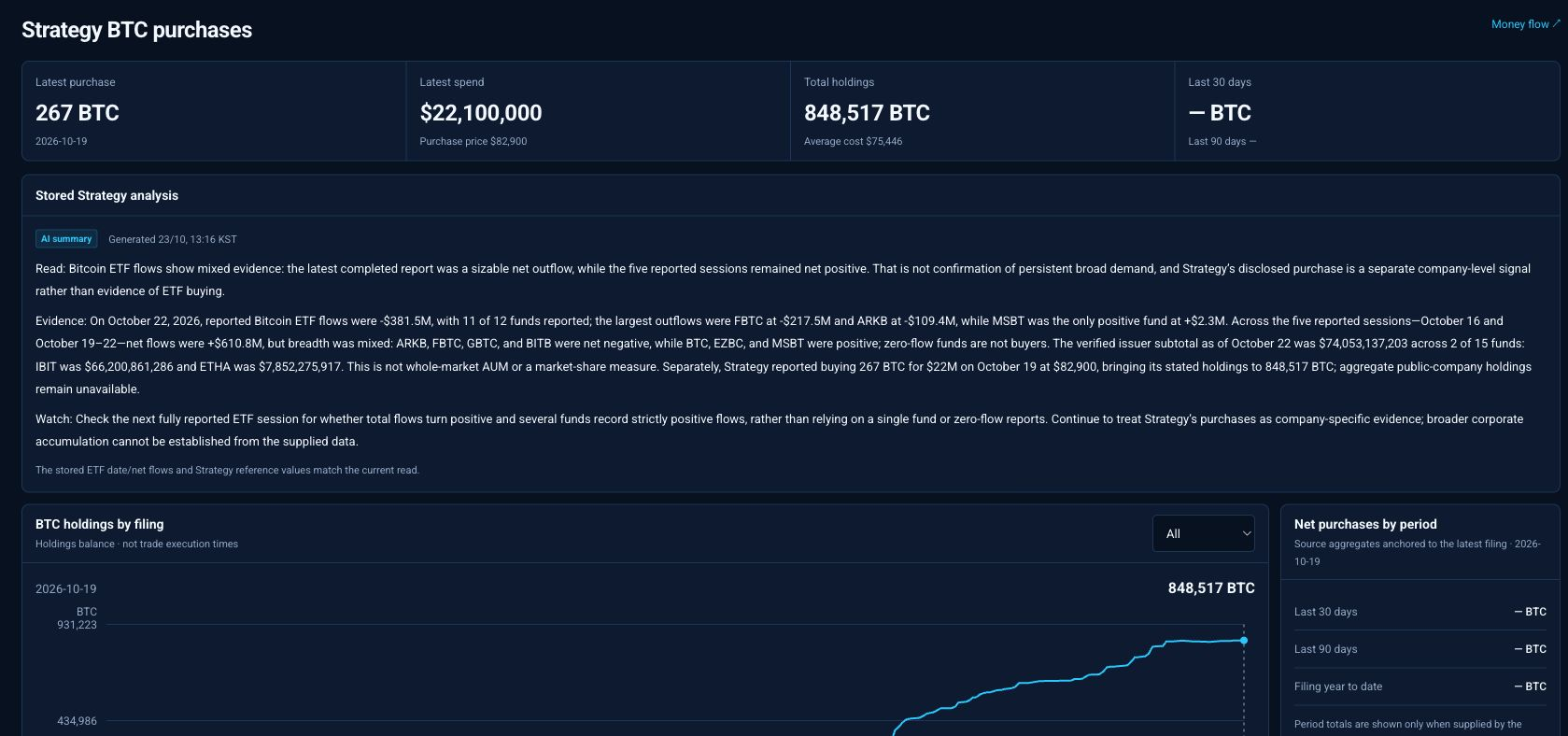
The top figures summarize recent purchases and total holdings. Use the chart and table together to explore when disclosed holdings changed.

This screenshot is an example. Open the menu for the latest information.

Strategy · Follow changes in Strategy's bitcoin holdings on the chart. Open the filing links to review its disclosed purchases.
2Choose All, 30D, 90D or 1Y and move through chart observations.
Follow changes in Strategy's bitcoin holdings on the chart. Open the filing links to review its disclosed purchases.
Strategy · Follow changes in Strategy's bitcoin holdings on the chart. Open the filing links to review its disclosed purchases.
1Review the latest purchase quantity, spend, total holdings and filing date.
Follow changes in Strategy's bitcoin holdings on the chart. Open the filing links to review its disclosed purchases.
Strategy · Follow changes in Strategy's bitcoin holdings on the chart. Open the filing links to review its disclosed purchases.
2Choose All, 30D, 90D or 1Y and move through chart observations.
Follow changes in Strategy's bitcoin holdings on the chart. Open the filing links to review its disclosed purchases.
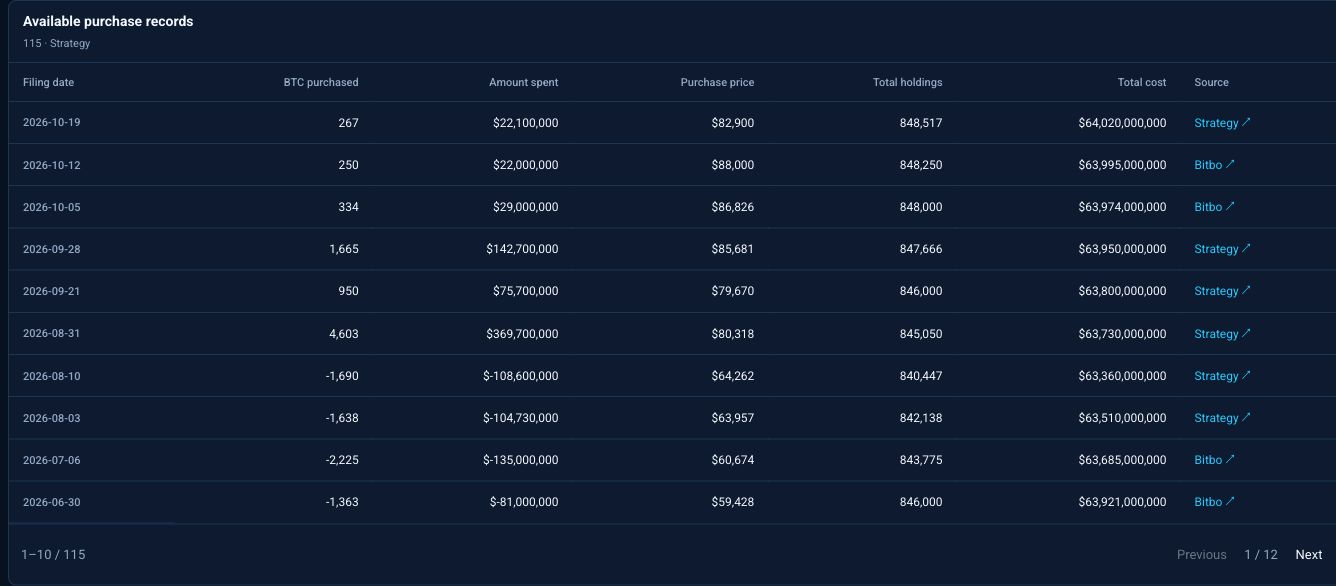
Strategy · Review BTC purchases by date. Use Previous and Next to browse purchases from other periods.
3Compare quantities, purchase prices and costs in the history table, using Previous and Next to browse.4Follow the filing or official purchase-history link for more detail.
Review BTC purchases by date. Use Previous and Next to browse purchases from other periods.

Separate table pages from chart periods

The table shows up to 10 purchases per page. Changing the period returns it to page one; moving between table pages does not change the chart’s range or the bases for holdings and period totals.

A disclosure date can differ from the purchase date. Undisclosed costs or period totals remain as dashes, which do not mean that no purchase occurred.

Put the purchases in context

This page tracks disclosed purchases and does not execute trades. A rise in holdings alone does not establish a BTC rally or another planned purchase; read the filings alongside the market news from that period.

Macro

Explore how rates, inflation and other economic indicators have changed, with context to help you understand the market backdrop.

Open page

Choose an indicator and explore its chart

Start with a category, then choose one indicator. Following one series through time is often easier than comparing many unrelated figures at once.

This screenshot is an example. Open the menu for the latest information.

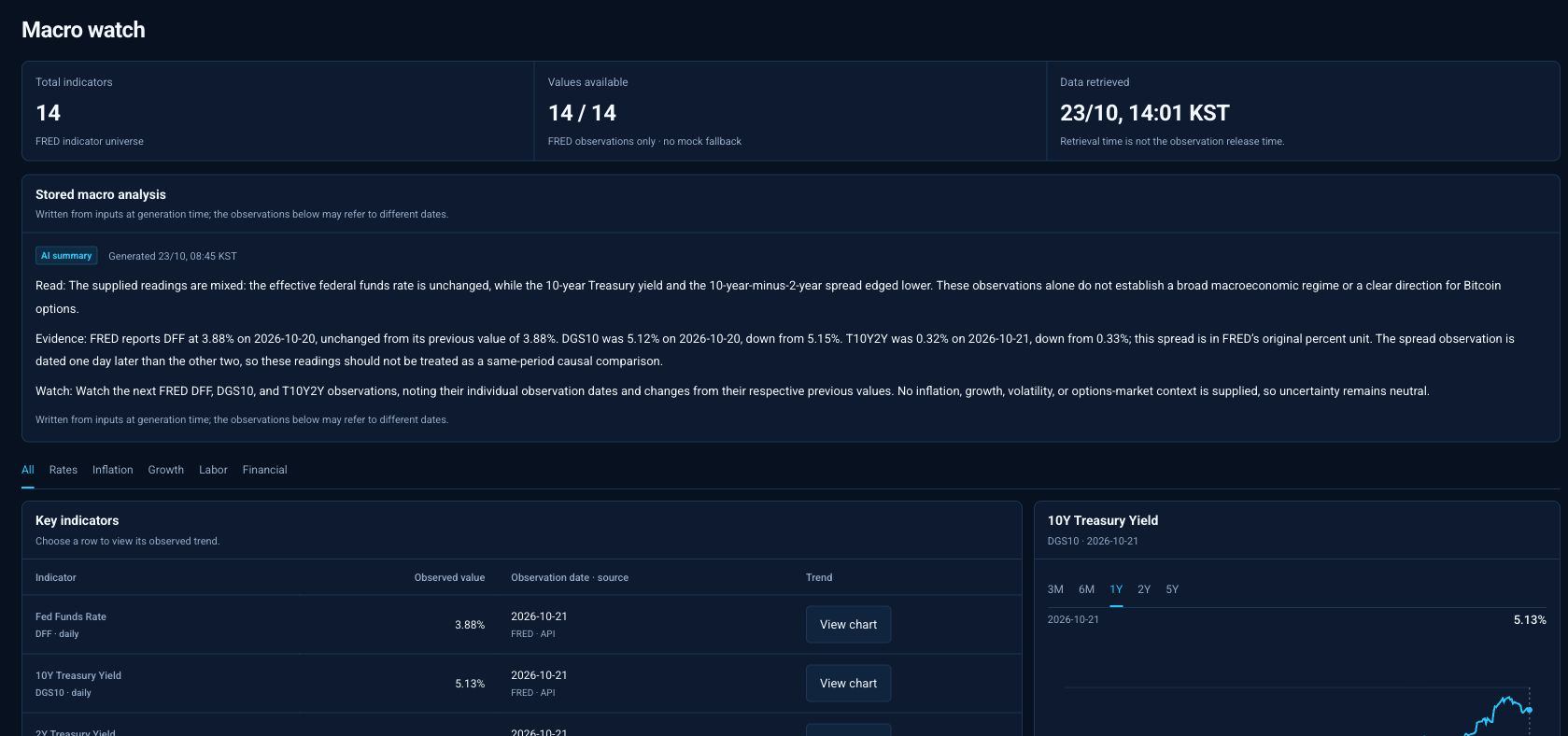
Macro · Choose an indicator and period to explore the trend. Check the data date and read the accompanying interpretation.
1Choose a category and select View chart in the indicator row.3Check dates, units and changes on the chart and latest reading.
Choose an indicator and period to explore the trend. Check the data date and read the accompanying interpretation.
Macro · Choose an indicator and period to explore the trend. Check the data date and read the accompanying interpretation.
2Select a period: 3M, 6M, 1Y, 2Y or 5Y.3Check dates, units and changes on the chart and latest reading.
Choose an indicator and period to explore the trend. Check the data date and read the accompanying interpretation.
  1. Read the accompanying analysis and follow the FRED source link for further detail.

Understand percentages and index levels

An interest-rate level, an inflation growth rate and an index value describe different things. For example, a rate moving from 4% to 5% rises by one percentage point, not by one percent in relative terms.

Indicators update on different schedules, even when you view them on the same day. Check whether a series is daily, monthly or quarterly and note its latest date before reading the analysis.

When the chart or analysis is missing

If nothing was released in a short window, try a longer period. Dates without observations can remain empty, and older history is limited to what is available.

You can still read the indicator when analysis in your language is unavailable. If an analysis discusses an earlier release, compare it with the latest date and value.

Market calendar

Plan ahead for economic releases, central-bank meetings, option expiries and other market events.

Open page

Find the events you need

Start with the next event at the top, or narrow the list to the topics and regions you follow.

This screenshot is an example. Open the menu for the latest information.

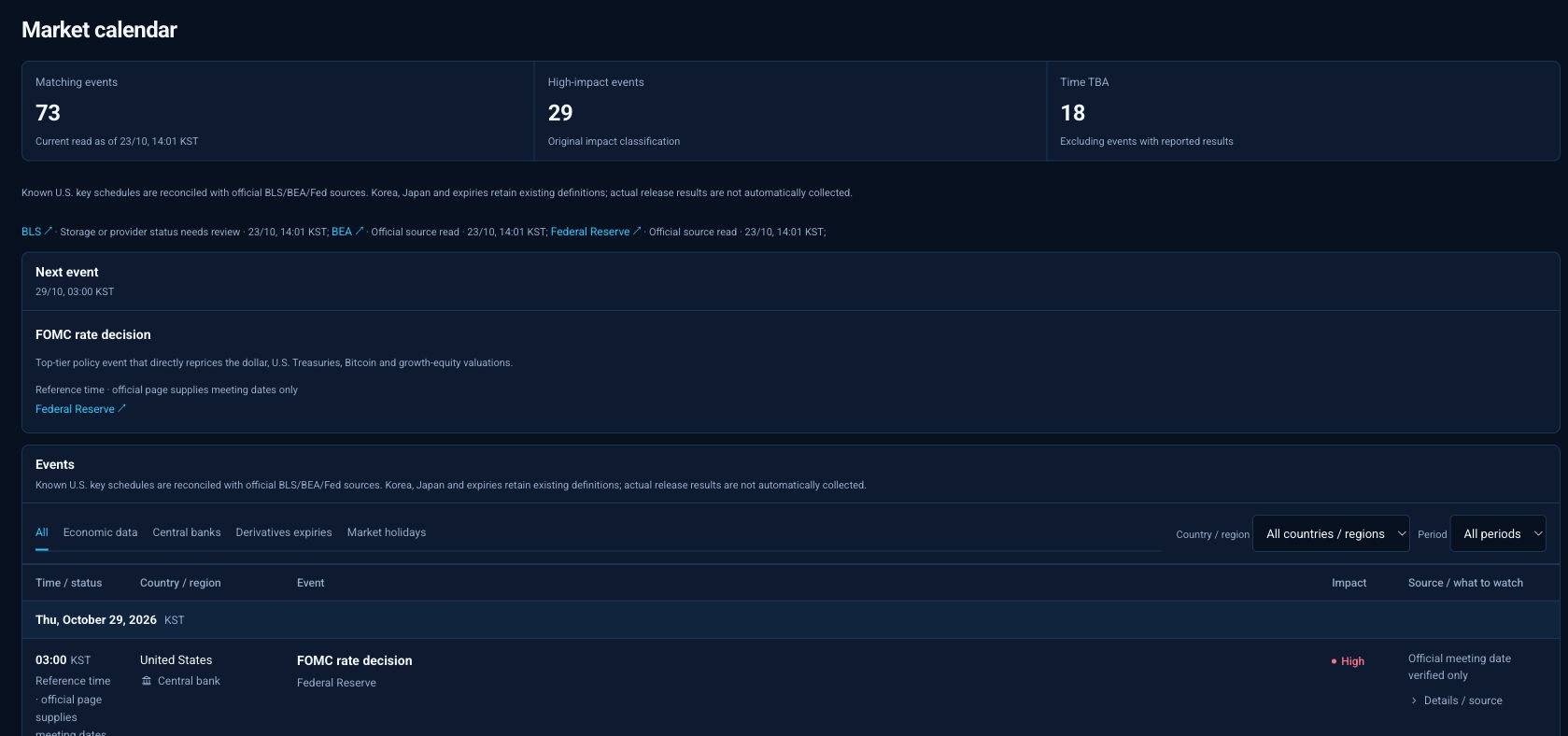
Market calendar · Find events by month, region and type. Check their times and release status, then open the official sources for details.
1Choose Economic data, Central banks, Derivatives expiries or Market holidays. Choose All to include every type.3Review each date group for the time, event, institution and importance.
Find events by month, region and type. Check their times and release status, then open the official sources for details.
Market calendar · Find events by month, region and type. Check their times and release status, then open the official sources for details.
2Choose a country or region and a month from the period list. The list includes months with available events.4Expand Details / source for an event to read what to watch, then follow the official source link for details.
Find events by month, region and type. Check their times and release status, then open the official sources for details.

Read times and event status

Event times use Korea Standard Time (KST), including when you view the page from another region. Check the official source again as an event approaches in case the schedule changes.

Time TBA
A date is listed, but the event time has not been confirmed.
Date confirmed
The date has been checked against an official source. A displayed time may be a reference time; read the event details.
Reported
A related news report is available. Open it from Details / source to read about the announcement.

Use importance and points to watch

Importance helps you prioritize your reading. A high rating does not guarantee a large price move or a particular direction.

Read the points to watch in Details / source to see what matters for that event. Where a related article is available, read it alongside the schedule to understand the response after the announcement.

If no events appear

Set the type to All, the country or region to All countries / regions, and the period to All periods. If the list is still empty, no matching event is currently listed. This is not a complete historical archive; you can also check an event with its official provider.

Screener

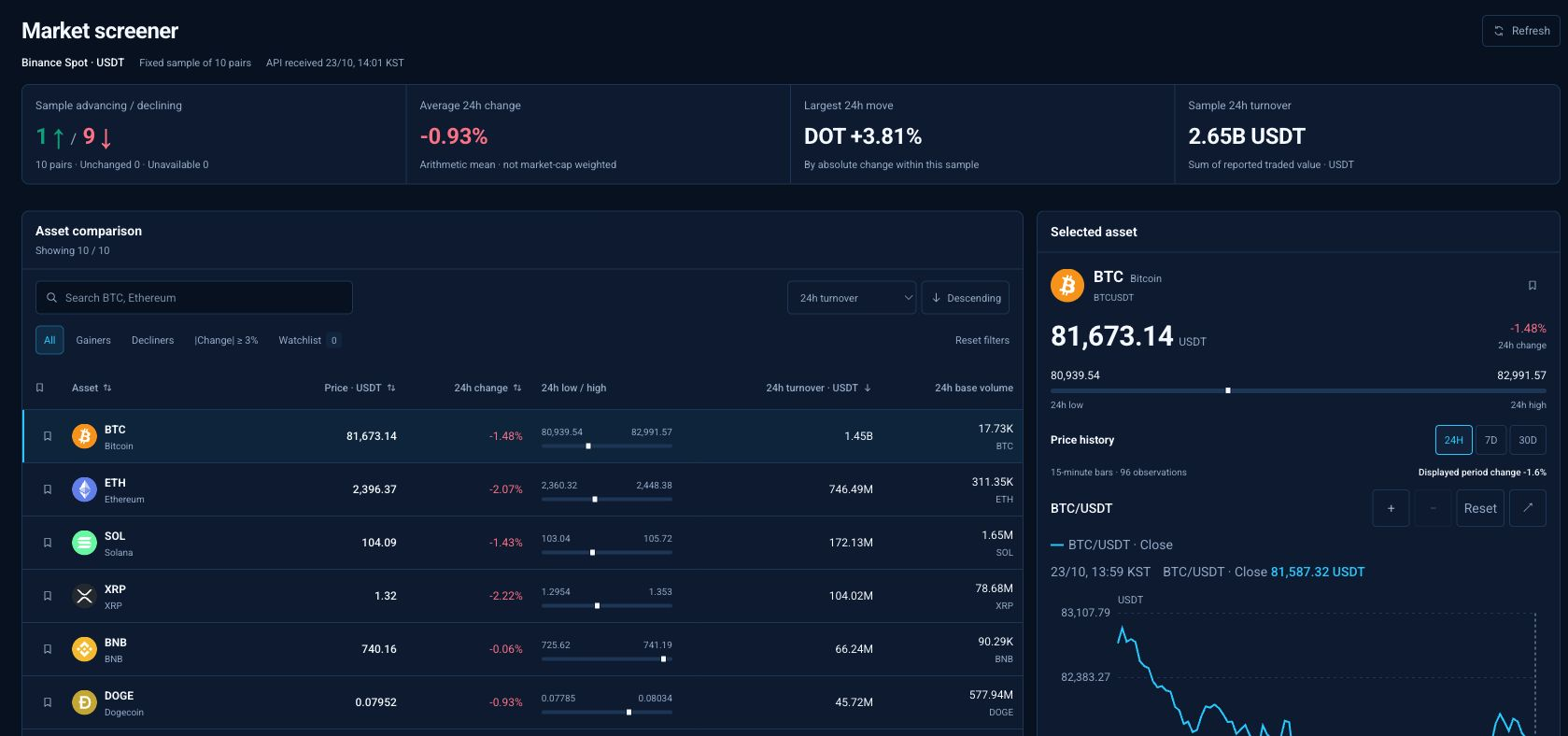
Compare prices, percentage changes and trading activity across the listed crypto assets, then explore a coin's chart.

Open page

Find and compare assets

Assets initially appear in order of 24-hour turnover, highest first. Combine search and filters to focus on the coins you follow.

This screenshot is an example. Open the menu for the latest information.

Screener · Compare assets by price and percentage change, then sort the table to suit your needs. Select an asset to view its USDT price chart.
1Enter a symbol such as BTC or an asset name in Search name or symbol.2Choose Gainers, Decliners or |Change| ≥ 3% to focus on the moves you want to review.3Choose turnover, percentage change, price or another sorting option, then select ascending or descending order. You can also sort by selecting a table heading.4Select an asset name to see its price range, chart and trading details in Selected asset. On mobile, the page moves to that section.
Compare assets by price and percentage change, then sort the table to suit your needs. Select an asset to view its USDT price chart.
Screener · Compare assets by price and percentage change, then sort the table to suit your needs. Select an asset to view its USDT price chart.
4Select an asset name to see its price range, chart and trading details in Selected asset. On mobile, the page moves to that section.
Compare assets by price and percentage change, then sort the table to suit your needs. Select an asset to view its USDT price chart.

Read prices and trading metrics

This page compares the supported USDT pairs on Binance Spot. The average change and advancing or declining counts describe the listed assets, rather than an index of the entire crypto market.

24h change
The percentage price change over the rolling past 24 hours. It may differ from a calendar-day return measured from midnight.
Turnover and volume
Turnover is the traded amount in USDT; volume is the quantity of the coin traded. Use them together when comparing price moves and activity.
24h low and high
The price range over the past 24 hours. The bar shows where the current price sits within that range.

Explore the price chart

In the selected asset's details, choose 24H, 7D or 30D. Hover over the chart to see the time and closing price. A change measured across the chart's selected period may differ from the table's rolling 24-hour change.

Keep a watchlist

Your watchlist is saved in the browser you are using. It does not carry over to other devices or browsers, and clearing browser data can remove it.

This screenshot is an example. Open the menu for the latest information.

Screener · Compare assets by price and percentage change, then sort the table to suit your needs. Select an asset to view its USDT price chart.
1Select the bookmark icon beside an asset, or Add to watchlist in its details.2Choose Watchlist to see your saved assets. Select the same bookmark button again to remove one.3If an asset is missing from view, choose Reset filters to restore the default search, filters and sorting. Your watchlist is kept.
Compare assets by price and percentage change, then sort the table to suit your needs. Select an asset to view its USDT price chart.

CVD

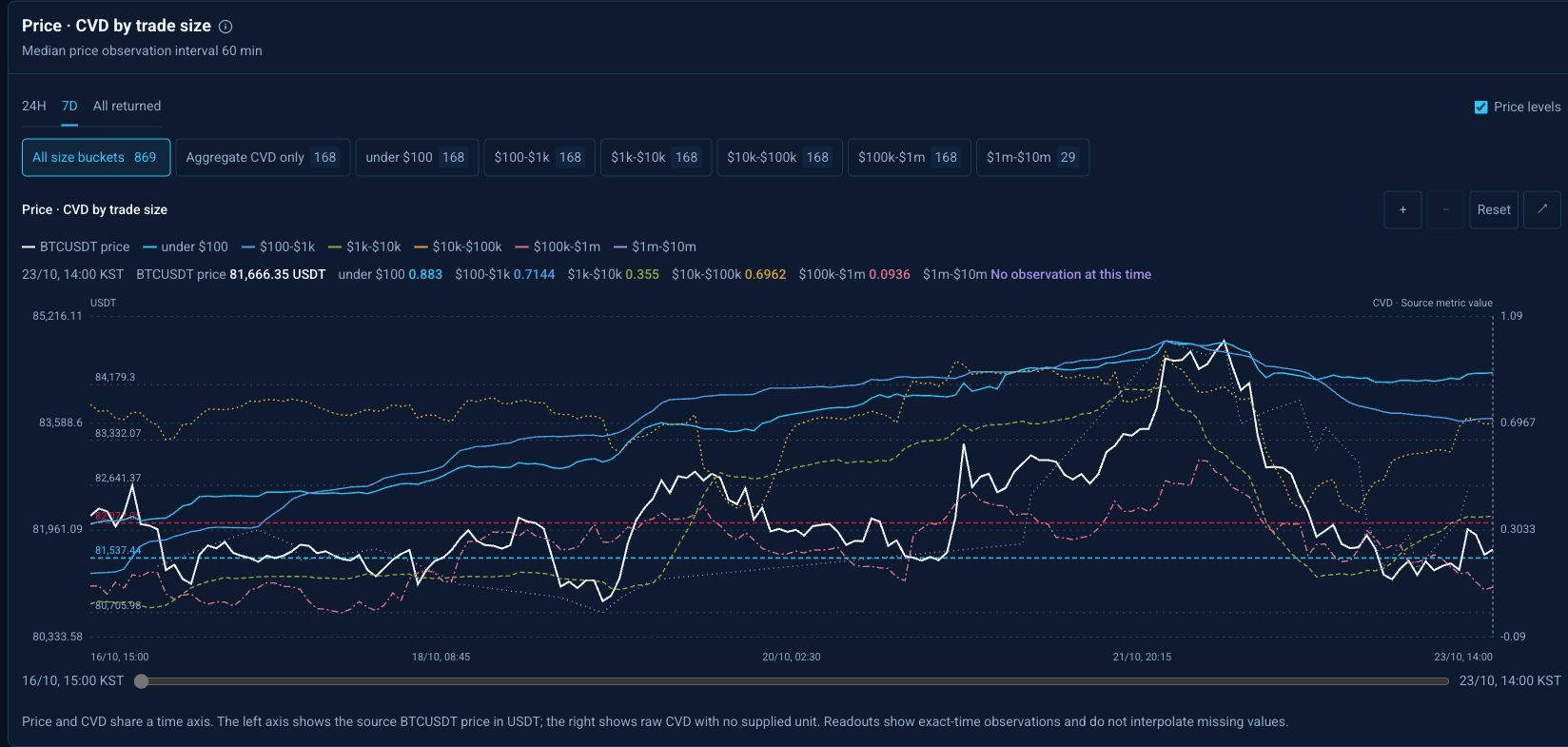
Compare BTC prices with trade-size indicators and use the chart and analysis to explore changes at matching times.

Open page

Compare a period and trade-size group

Start with the indicator timestamps to see how recent the readings are. If the analysis and chart refer to different times, read each in its own time context.

This screenshot is an example. Open the menu for the latest information.

CVD · Choose a period and trade-size group, then compare the price and CVD charts over the same time range.
Choose a period and trade-size group, then compare the price and CVD charts over the same time range.
CVD · Choose a period and trade-size group, then compare the price and CVD charts over the same time range.
1Choose 24H, 7D or All returned for the time range.2Choose aggregate CVD or trade-size groups to decide which lines to compare.
Choose a period and trade-size group, then compare the price and CVD charts over the same time range.
CVD · Choose a period and trade-size group, then compare the price and CVD charts over the same time range.
4Use zoom or expand for a closer look, and Reset to restore the view.
Choose a period and trade-size group, then compare the price and CVD charts over the same time range.
CVD · Choose a period and trade-size group, then compare the price and CVD charts over the same time range.
3Hover over the chart or move the time slider below it to read prices and indicators at the same point.
Choose a period and trade-size group, then compare the price and CVD charts over the same time range.

Keep prices and CVD on their own scales

The price is quoted in USDT. CVD on this page has no confirmed BTC or USDT quantity unit, so it cannot tell you how many coins were bought.

A size option such as under $100 groups trades by size; it is not a CVD unit. Compare changes at the same time rather than equating the heights of the price and CVD lines.

Read the supporting indicators and levels

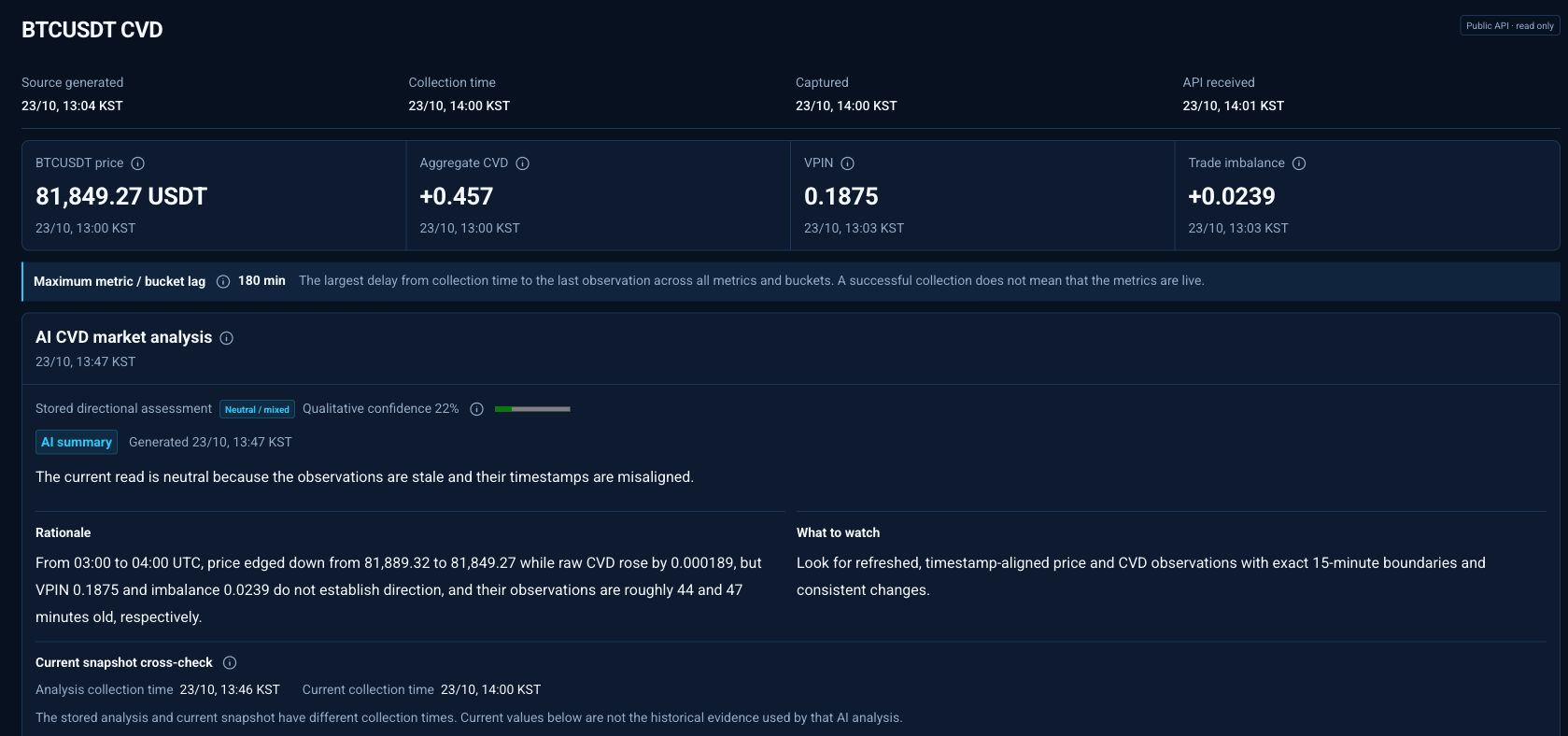
Open the help beside a metric for its explanation. Use prices and other indicators together instead of treating one reading or sign as a buy or sell direction.

CVD
CVD generally refers to cumulative trade delta, but this page’s unit and sign convention are unconfirmed.
VPIN
A supporting order-flow indicator. No common risk threshold is supplied here, so a particular number is not a defined safe or dangerous boundary.
Trade imbalance
You can compare its changes, but its sign alone does not establish buying or selling dominance.
Price levels
Levels above and below the price for reference, rather than proven support or resistance.

Use the analysis with the chart

Read the AI summary, then Rationale and What to watch. Prices can change after an analysis is written, so use the latest chart alongside it.

Confidence describes how certain an analysis is, not its accuracy rate or chance of profit. If a review notice appears or your language has no analysis, start with the metrics and their help.

This screenshot is an example. Open the menu for the latest information.

CVD · Read the AI analysis alongside the key CVD metrics. Check when the analysis was created and which time the metrics refer to.
Read the AI analysis alongside the key CVD metrics. Check when the analysis was created and which time the metrics refer to.

BTC options

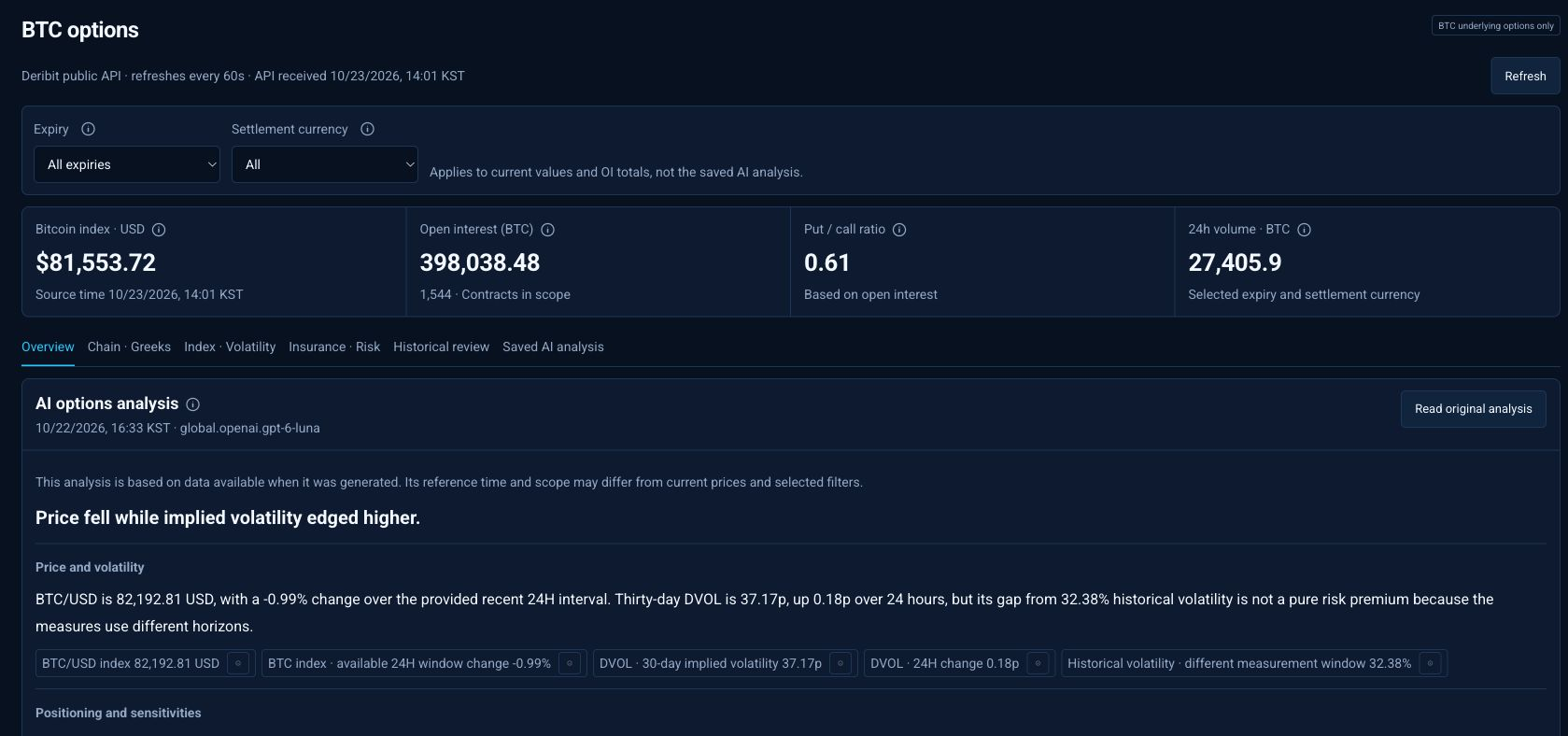
Compare Deribit BTC options by expiry and explore differences in premiums, volatility and Greeks.

Open page

Choose an expiry and contract

Start with Overview, then choose a contract in Chain · Greeks. Expiry and settlement currency matter when comparing options.

This screenshot is an example. Open the menu for the latest information.

BTC options · Choose an expiry and settlement currency to explore BTC options. Review OI, PCR and volatility alongside them.
1Choose All, nearest or a specific expiry, then select All, BTC or USDC settlement.2Review OI, PCR and other headline metrics in Overview.
Choose an expiry and settlement currency to explore BTC options. Review OI, PCR and volatility alongside them.
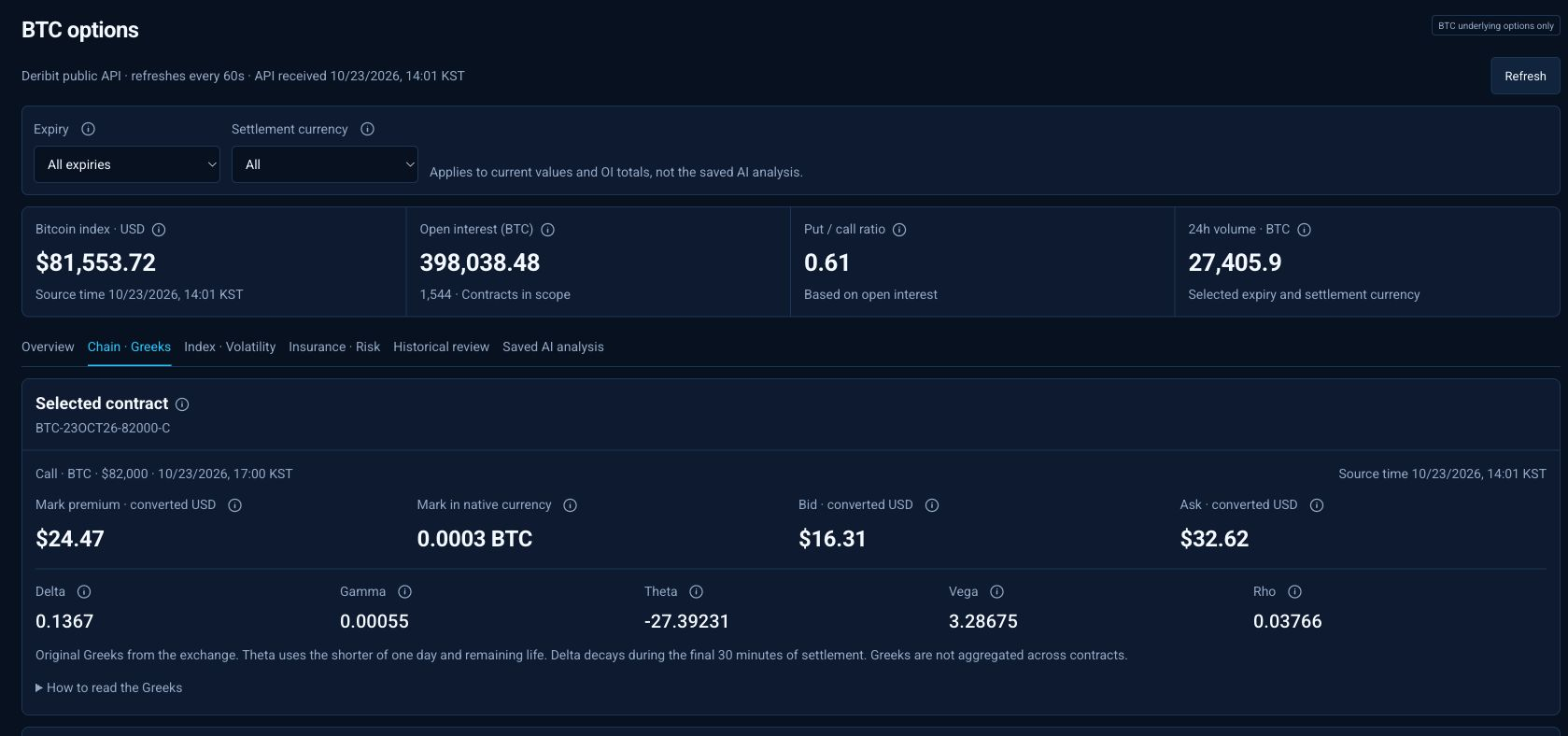
BTC options · Choose a call or put contract, then review its premium, bid and ask quotes, and Greeks.
3Open Chain · Greeks, use call/put and contract search, then select a contract name.4Compare premium, quotes, IV and Greeks with their help; use Previous and Next for more contracts.
Choose a call or put contract, then review its premium, bid and ask quotes, and Greeks.
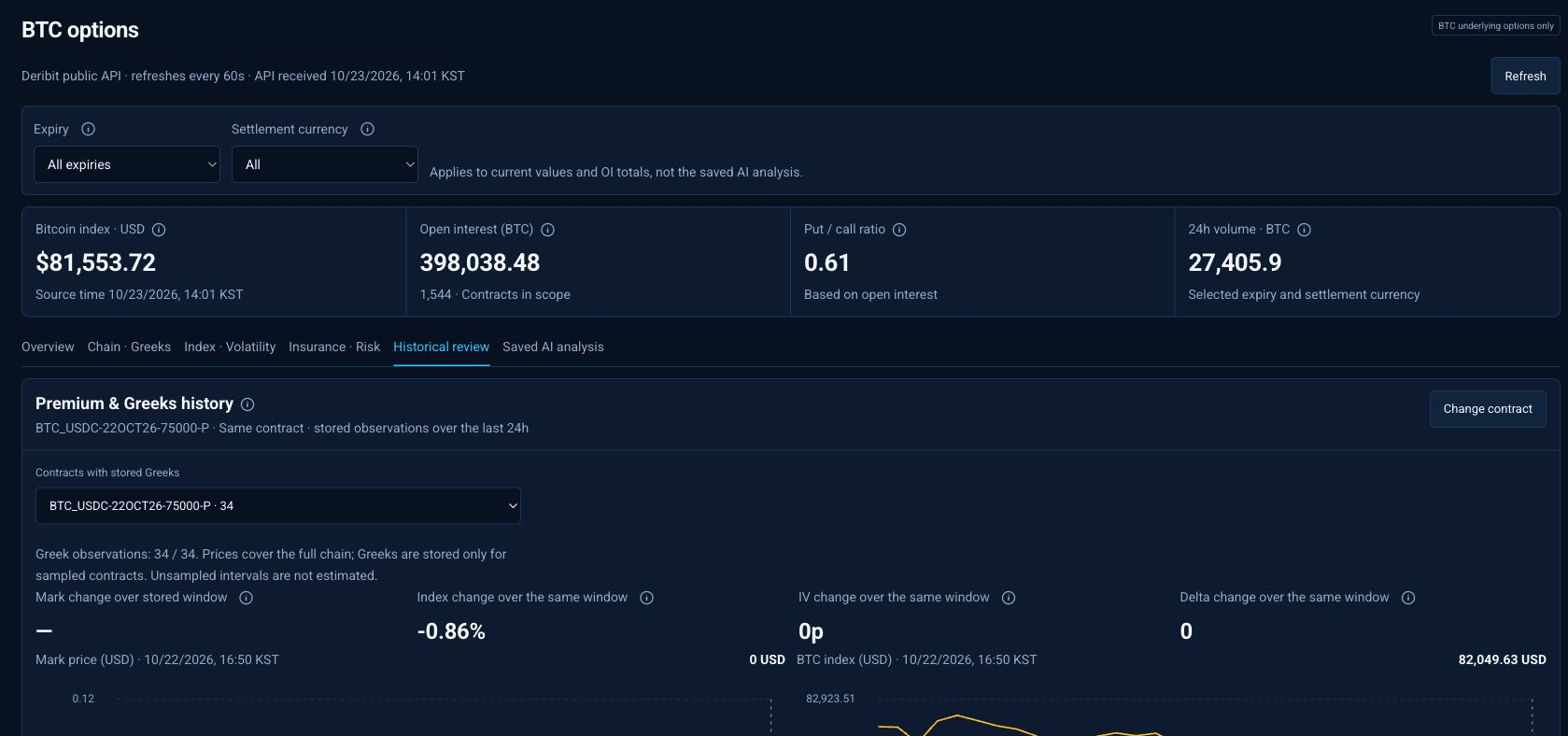
BTC options · Select a contract and time to compare earlier prices and Greeks. Only periods with available records can be shown.
5To explore earlier values, select an available contract in Historical review.
Select a contract and time to compare earlier prices and Greeks. Only periods with available records can be shown.
Premium and mark
Premium is the option price. Mark is a valuation; check bid and ask as well when considering a tradable price.
OI · open interest
Outstanding contracts, rather than unfilled orders. Higher OI alone does not establish an upward price direction.
PCR
Put OI divided by call OI in the selected scope: a size comparison, not a directional probability.

Understand volatility

Use Index · Volatility to compare IV, DVOL, HV and expiries. Higher IV means larger swings are priced into options, rather than an indication that BTC will rise.

The displayed estimated range is a simple guide to possible movement size, not a price target or a guaranteed band. Check remaining time when comparing expiries.

IV · DVOL · HV
IV is option-implied volatility, DVOL is an annualized 30-day forward index, and HV measures past price variation. Compare their time horizons.
Basis and funding
Futures-market references: basis compares mark with index price, while funding uses an eight-hour perpetual reference. Neither is an option return.

Use Greeks to understand price sensitivity

Greeks describe sensitivity to changes in BTC price, time, volatility and other factors. They help compare contracts; your account’s outcome also depends on quantity and whether you buy or sell.

Delta
Sensitivity to BTC price: a standard long call is positive and a long put negative. It is not the probability of a price rise.
Gamma
How delta changes with BTC price; it can become larger near expiry when the strike is close to the current price.
Theta
Time sensitivity; when less than a day remains, Deribit uses the option’s remaining life rather than a full day.
Vega
Price sensitivity to IV; other things equal, a standard long option responds positively to higher IV.
Rho
The option price’s sensitivity to interest rates.

Use history, insurance and analysis

Historical review includes the contracts and times that were saved. A gap in Greeks means unavailable history, not a complete record around every expiry.

In Insurance · Risk, distinguish the BTC and USDC fund categories and displayed units. These are exchange-loss buffers, not guarantees of your investment.

Read Saved AI analysis with its writing time and compare it with the figures above. Refresh updates the view; it is not a button for generating another analysis.

Premium

Explore the available plans and payment options alongside your own trial and subscription status.

Open page

Review plans and payment options

First check the trial or subscription status shown in Account. Signing up does not automatically unlock every paid feature; use your displayed status to see whether a trial is available.

This screenshot is an example. Open the menu for the latest information.

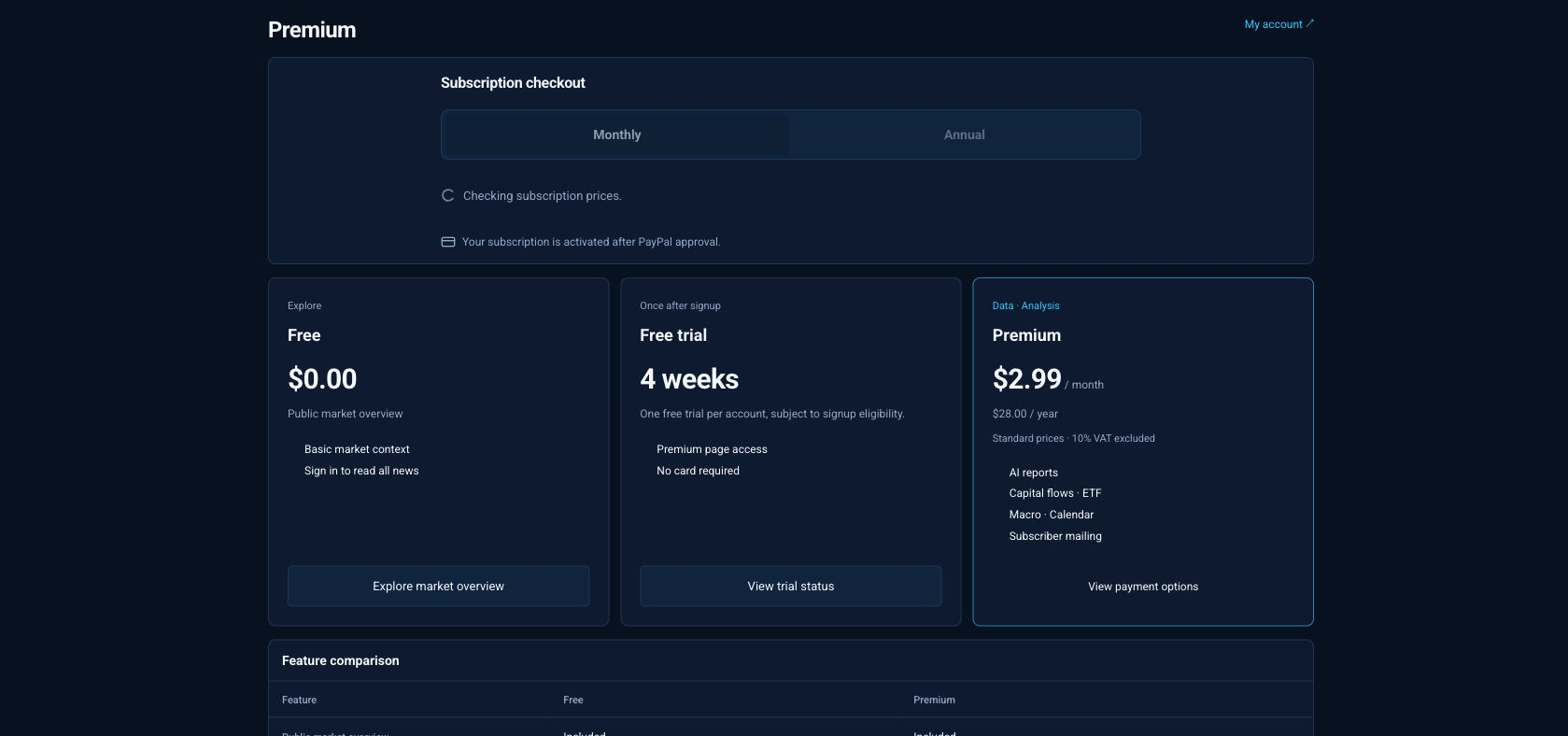
Premium · Compare the benefits to find the right option for you. Review the billing period and subscription details before paying.
1Read the plan details in Premium and select View checkout options.
Compare the benefits to find the right option for you. Review the billing period and subscription details before paying.
  1. If asked, sign in with Google and return to checkout.
  2. Choose monthly or annual billing and check the currency, amount and tax information.
  3. Select Continue with PayPal to prepare checkout, then use the displayed PayPal button to sign in, review the final terms and approve.
  4. After approval and return to SPARK, check your subscription and billing details in Account.

Check amounts and completion

Display currency can vary with language. Do not treat prices in different languages as the same currency; use the conditions shown at checkout and in PayPal’s approval screen.

Opening PayPal alone does not complete payment. Follow any loading or error guidance; if you have already approved, check Account before proceeding again.

Manage or cancel a subscription

For an active subscription, use Manage subscription to open Account and review the next billing date and latest payment. To cancel, select Cancel PayPal subscription and read the confirmation first.

Cancellation stops recurring billing and removes subscription access; previous payments are not refunded automatically. An active subscription must be cancelled before account deletion.

Learn more